Privacy Zones
What are Privacy Zones
Privacy Zones let you block data collection in specific areas (like your home, office, or other sensitive locations). When a Bee enters a Privacy Zone, it automatically stops uploading video and map data within that area.
How to Set Up a Privacy Zone
- Open Bee Maps App.
- Connect the Bee Maps App to your Bee device.
- Go to Setting.
- Go to Privacy.
- Go to Privacy Zones.
- Tap the Privacy icon on the bottom left corner of the screen.
- Move the map to select a location.
- Adjust the radius using the slider.
- Tap Use This Location (first time) or Use This Radius (for updates).
Example Uses
- Block uploads around your house or workplace.
- Protect recurring locations where you don't want data recorded.
Notes
- You can create multiple Privacy Zones.
- Zones appear as red circles on the map and can be resized anytime.
- Privacy Zones is device/user specific.
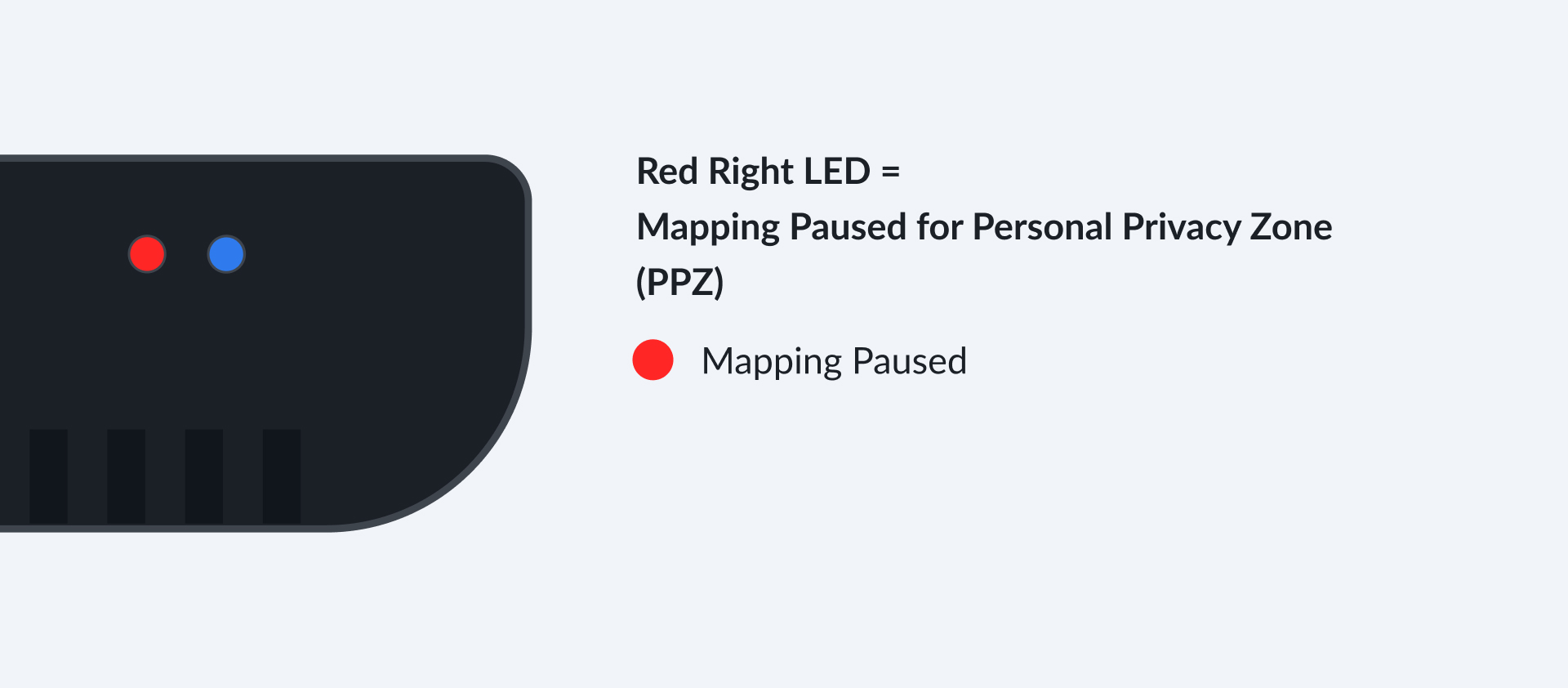
- If you are on a Privacy Zone, the light on your Bee device will turn red.
