
Upload via WiFi Connect
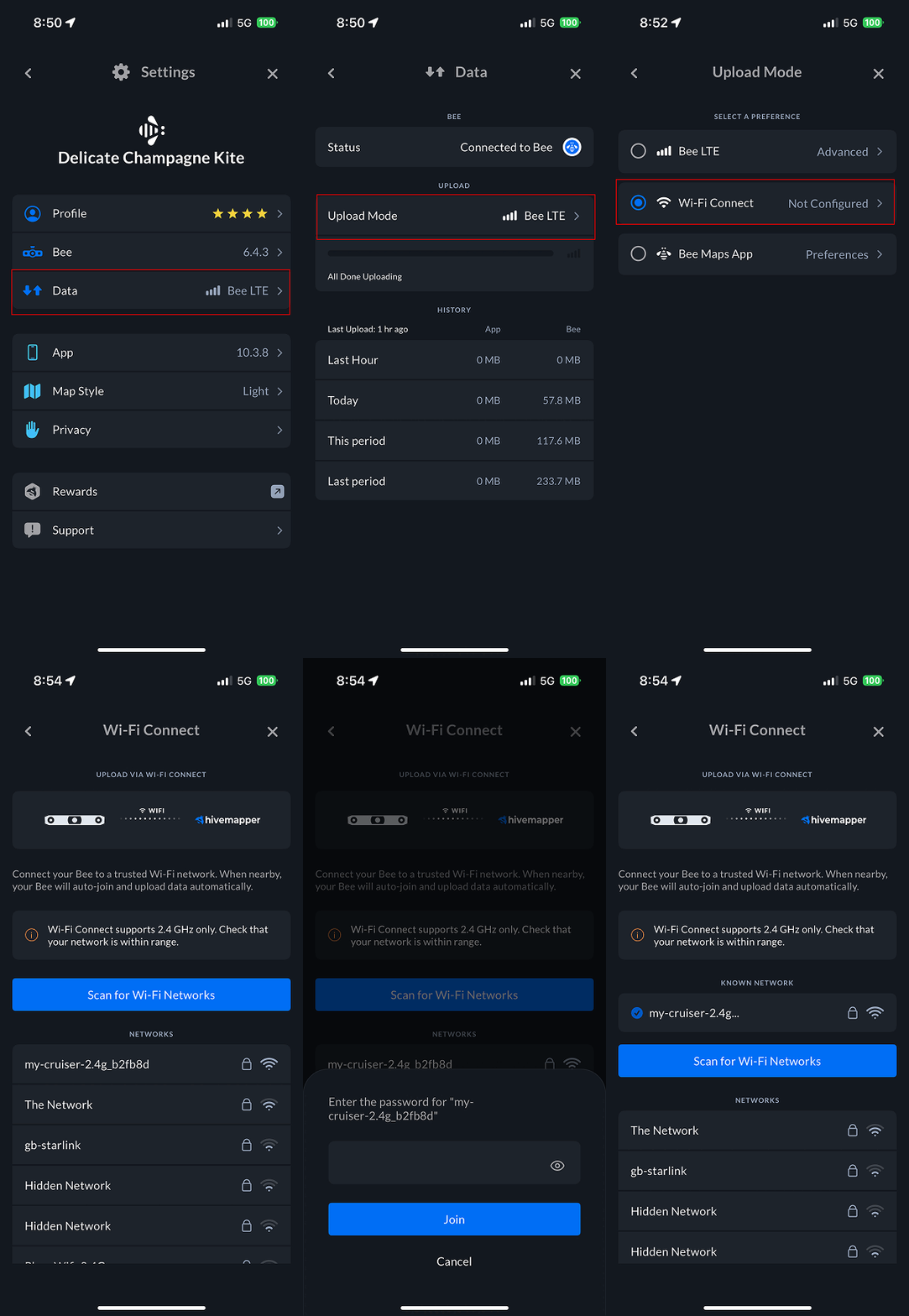
1. Select WiFi Connect mode
- Open Bee Maps App.
- Connect to your Bee device.
- Go to Settings.
- Go to Data.
- Select Upload Mode.
- Select WiFi Connect mode.
- Under the WiFi Connect selection click Configure.
2. Setup WiFi Network
- Tap Scan for WiFi Networks.
- The WiFi network must be in range of the Bee.
- Select the trusted WiFi network you want your Bee to use.
- Enter the WiFi's network password.
- Tap Join.
- Blue checkmark indicates that your Bee is connected to the saved WiFi Network.
Only one saved WiFi Network is supported.
3. Check Progress (optional)
- Open Bee Maps App.
- Go to Settings.
- Go to Data.
- Check progress bar.