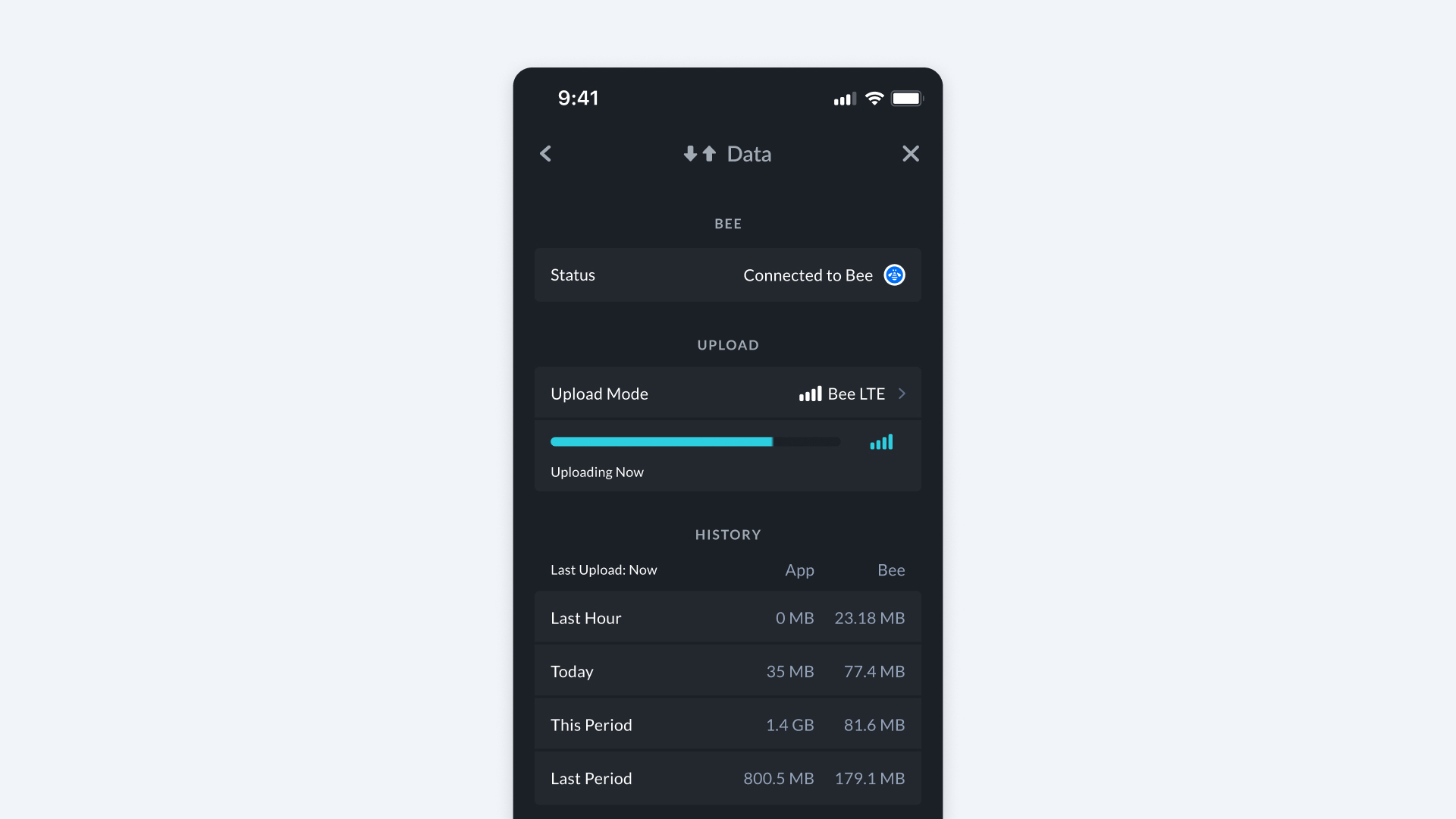
Uploading Data
Your Bee's AI starts mapping automatically as soon as you drive, capturing street-level imagery, video, and GPS data of the roads around you. This data is uploaded to Bee Maps where it is used to build and update maps and is made available to Bee Maps customers through our data APIs. Data can be uploaded in three different ways, managed through the Upload Mode setting in the Bee Maps App.
Step One: Sign in with your email (required)
Sign in to the Bee Maps App before uploading data.
- Open the Bee Maps App.
- Enter your email address.
- Check your inbox for an email from Bee Maps.
- Tap the link in the email to authenticate in the app.
Step Two: Choose Upload Mode
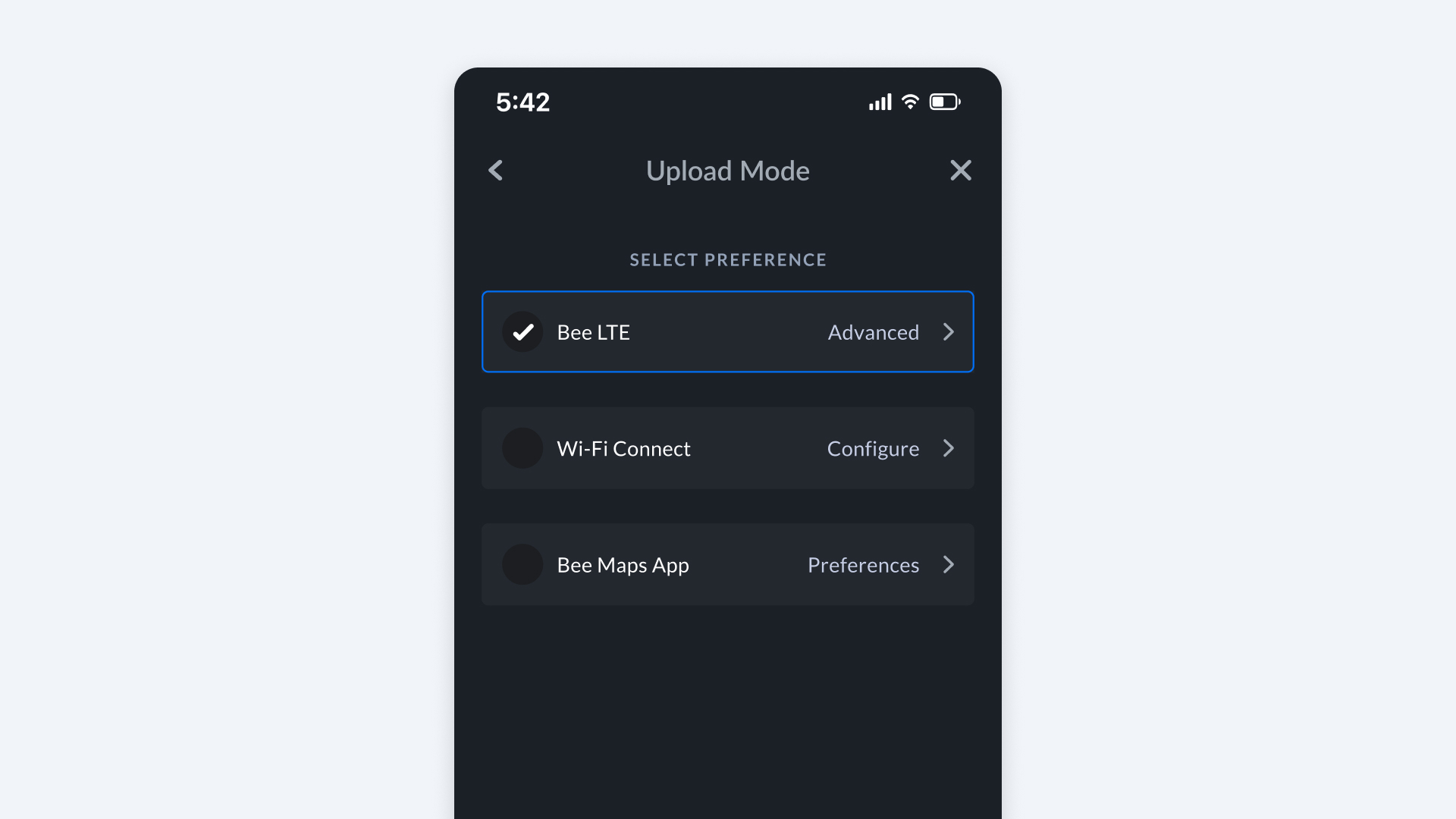
Go to Settings -> Data -> Upload Mode. Here, you'll see three options to choose from:
| Upload Mode | 100% Passive | Description |
|---|---|---|
| Bee LTE | Yes | Uploads directly from the Bee LTE device via SIM connection. |
| WiFi Connect | Yes | Uploads when Bee connects directly to a trusted WiFi network. |
| Bee Maps App | No | Uploads via your phone when connected to Bee. |
Step Three: Check your uploads
To see how much data your Bee has uploaded:
- Open the Bee Maps App.
- Go to Settings -> Data.
- Review recent and past uploads (e.g., last hour, today, this period) by type (e.g., WiFi, App, LTE).